

Overview
Asciinema.cast files are text-based recordings of terminal sessions that capture every command, keystroke, and output from your terminal. By attaching Asciinema recordings to operation log entries, you create an immutable, reproducible record of your operational activities.
Unlike manual notes or screenshots, terminal recordings provide full context:
- Complete command history showing exactly what was run
- Full output of all commands executed
- Timing information showing when each command was issued
- Reproducible playback allowing others to see the exact sequence of events
When to Record
Record and attach terminal activity when:- Running multi-step reconnaissance commands
- Key exploitation or post-exploitation activities
- System configuration changes
- Capturing proof-of-concept demonstrations
- Documenting complex technical workflows
- Creating evidence for forensic analysis
Prerequisites
Asciinema files (.cast format) are plain-text JSON files that capture terminal sessions. Ghostwriter accepts both plain .cast files and Gzip-compressed .cast.gz files. You can create them using:
- Asciinema CLI:
asciinema rec filename.cast(creates while recording) - Existing terminal session tools: tmux/screen logs converted to
.castformat - Manual
.castfile creation: If you have terminal output in text format - Compressed recordings: Use
gzip filename.castto createfilename.cast.gzfor large recordings
Recording a Terminal Session with Asciinema
Installation
If you don’t have Asciinema installed, follow the instructions in Asciinema’s documentation.Recording a Session
Execute Your Commands
Execute your commands and activities as normal
- Everything typed and all output is captured
- The recording starts immediately and captures keystrokes in real-time
End the Session
End the recording by pressing
Ctrl+D or typing exit- Asciinema will display upload options (decline if you want to keep it local)
- The
.castfile is saved to your specified filename
The
.cast file format is a JSON-based plain-text file, approximately 10KB per minute of recording depending on output volume. For long sessions or high-output operations, compress the file using gzip filename.cast to create a much smaller .cast.gz file that Ghostwriter can use directly.Uploading Recordings via the Web Interface
Once you have a.cast or .cast.gz file, you can attach it to a log entry:
Open the Log Entry
Open the log entry details by clicking the entry on left-side table view. The details will appear in the right-hand pane.
Scroll to the Dropzone
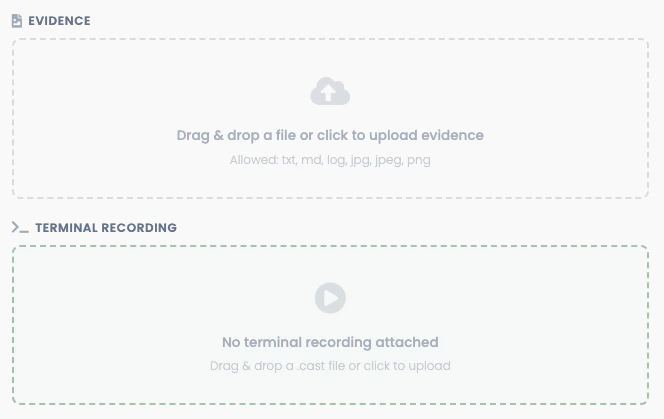
Scroll to the Terminal Recording sectionIf no recording has been attached yet, you will see the dropzone
- Validate the file extension is
.castor.cast.gz - For compressed files, automatically serve them with proper headers for browser decompression
- Confirm the upload with a success message
- Add the “recording” tag to the log entry
- Make the recording available for playback
Viewing and Playing Recordings
Once a recording is attached, you can view it in the log entry details: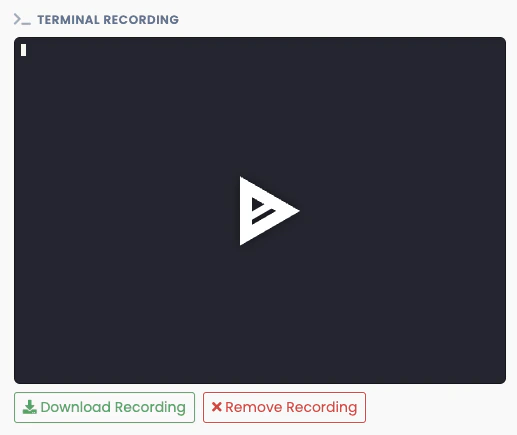
Deleting or Replacing a Recording
If a log entry already has a recording and you want to replace it:Open the Log Entry
Open the log entry details by clicking the entry on left-side table view. The details will appear in the right-hand pane.
Remove the Recording
Click the Remove Recording button to delete the recording.
This action cannot be undone! Consider downloading a copy before removing the file.
Downloading a Recording
To download a recording for archival or external analysis:Open the Log Entry
Open the log entry details by clicking the entry on left-side table view. The details will appear in the right-hand pane.
Uploading Recordings via GraphQL API
If you’re automating log entry creation, you can upload recordings programmatically:GraphQL Mutation: uploadOplogRecording
Upload a Recording
oplogEntryId(required): The ID of the log entry to attach the recording tofile_base64(required): The.castor.cast.gzfile encoded as base64filename(required): The filename of the recording (must end with.castor.cast.gz)
Upload Response
- Requires authentication
- User must have edit permissions for the operation log entry’s project
Retrieving Recording Metadata and Content
To download a recording or retrieve its details:Download a Recording
Download Response
The
fileBase64 field is only populated if you explicitly request it in the query. Use downloadUrl for serving the file directly or
to build download links.Asciinema Technical Details
You can learn more about Asciinema here..cast File Format
The Asciinema .cast format is a new-line delimited JSON-based and follows this structure:
Example Asciinema File Header
File Size Considerations
- Average recording: 10KB per minute for plain
.castfiles - High-output operations: Can reach 100+ KB per minute
- Compressed
.cast.gzfiles: Typically 10-20% of original size due to plaintext repetition - Asciinema does not support “lazy-loading” or streaming content, so the entire file must be loaded in browser memory for playback.
Best Practices
- Start recording before action begins: Start Asciinema before running commands, not after
- Keep recordings focused: Record a single activity or workflow, not entire operations
- Use meaningful filenames: Name recordings by activity (e.g.,
seatbelt-execution.cast) - Verify quality: Test playback before attaching to ensure timing and output are correct
- Clean sensitive data: If recording captures credentials or sensitive data, create a separate sanitized version
- Supplement with notes: Use the log entry fields to describe the objective and key findings
- Compress cast files: Compress recordings that are longer than 30 minutes or have a high volume of commands and/or output
Troubleshooting
“Can’t play the recording in Ghostwriter?”
- Files Asciinema cannot understand will appear as a broken video player
- Verify the file is a valid
.castformat from Asciinema - Check that the file extension is exactly
.cast(lowercase) - Try playing it locally first:
asciinema play filename.cast
- Some command-line tools clear the screen; scroll through the playback timeline to find them
- Check that the entire session was captured by playing the file locally first
.cast file after recording?”
- Yes—
.castfiles are JSON and can be edited with any text editor - Common edits: removing sensitive commands, fixing timing issues, or adding annotations